
Design process
How to Turn a SketchUp View into an Interior Render with AI
Export one readable model view, define materials and light, compare the AI concept with its geometry, then refine only a useful result.
To turn a SketchUp view into an interior render with AI, save a clear camera view in the model, export that view as a high-resolution raster image, and use it as the source for a concise material and lighting brief. Compare the generated concept with the export before refining it. Keep the model—not the AI image—as the authority for dimensions and geometry.
This workflow is useful for rapid visual exploration, not for importing or updating an editable model. Vizterior works from the exported image rather than a .skp file. SketchUp is a Trimble product; the references here describe an independent image-based workflow and do not imply an integration, affiliation or endorsement.
1. Start with model geometry, not an ambiguous drawing
A model-view export already contains crisp perspective, cabinet divisions, opening sizes and furniture massing. That makes it a different input from a hand sketch. The task is to interpret modeled faces as materials and give the scene light—not to invent what a loose line might represent. Keep that advantage by exporting a clean view with the important geometry visible.
The source below is a synthetic clay-model illustration created for this guide. It is not a screenshot, real SketchUp export or measured project. Its three-panel window, rear kitchen run, island, three stools, right bookcase, sofa, rug plane and oval table make a controlled sequence possible without showing a software interface.
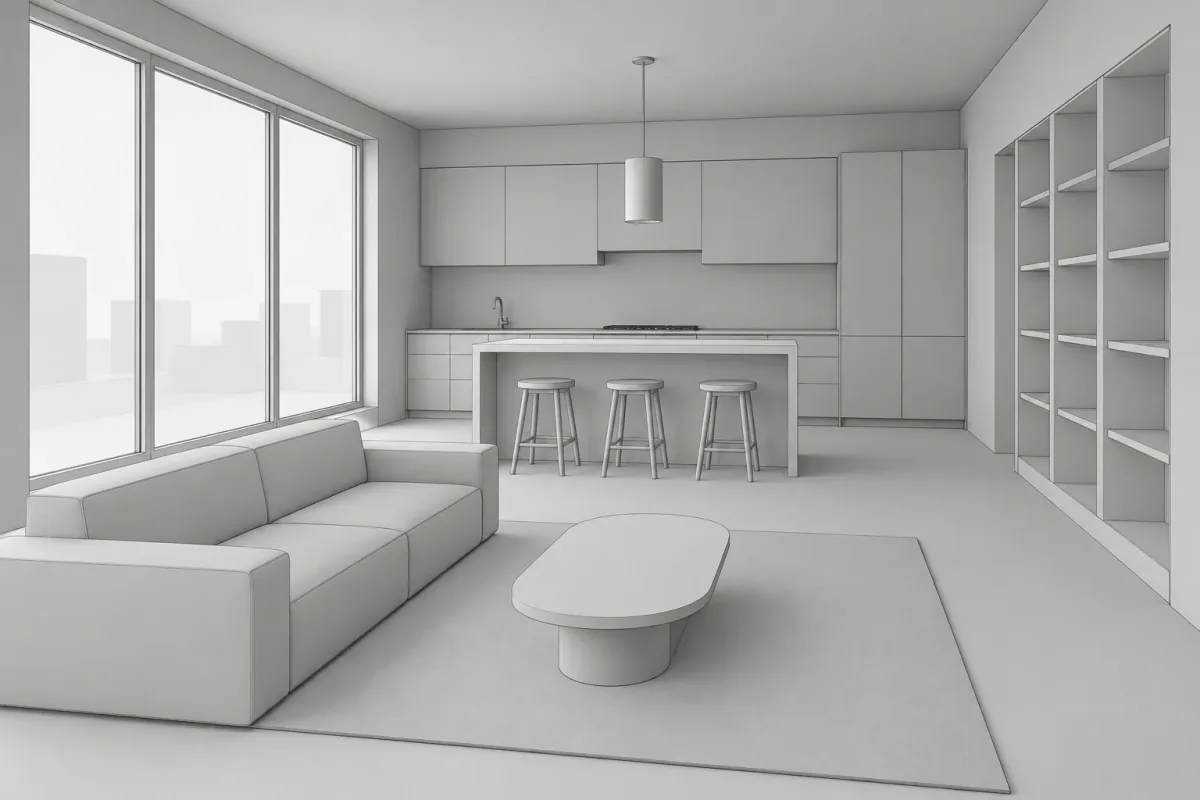
2. Prepare the model before exporting the view
Resolve the geometry that matters to the current decision before asking AI to visualize it. Cabinet modules, island depth, window divisions, built-ins and major furniture blocks should read clearly. Hide abandoned alternatives and overlapping objects. If two faces occupy the same place or a cabinet is open accidentally, a realistic material will make the problem more convincing rather than correcting the model.
Use a simple face style with visible, restrained edges. Turn off axes, guides, selection highlights, dimensions, annotations and section artifacts unless one is essential to understanding the design. A busy sketch-style edge treatment can blur cabinet joints; a completely white image with no edge contrast can make adjacent planes merge. Aim for clean shaded faces and legible boundaries.
Decide what the image is meant to test. If the question is kitchen materials, keep the kitchen and its relationship to the living area in frame. Do not add three unrelated camera views to one image. Create separate exports for separate perspectives and retain the underlying model as the common reference.
A pre-export cleanup pass
Inspect the view as if another person had to read it without opening the model.
- Show complete window, door, cabinet, island and built-in boundaries.
- Hide guides, axes, dimensions, selected edges and unused alternatives.
- Keep edge weight light enough that surfaces remain visible.
- Remove temporary people, plants and entourage unless their massing matters.
- Fix reversed, missing or overlapping faces in the model before export.
3. Save the camera and export a readable raster image
Choose the eye level and field of view deliberately, then save the view as a scene so you can return to the same camera. Avoid an extreme wide angle that stretches the sofa and makes the island clearance look generous. Vertical edges should remain visually credible; if you use a two-point view, keep that same choice for later model comparisons.
SketchUp can export the current view as a 2D raster graphic, including PNG or JPEG, with pixel dimensions and antialiasing controls. Use the current documentation for your installed version. Export larger than the eventual display size so cabinet edges remain readable, but do not mistake pixel resolution for geometric accuracy. PNG is useful for clean linework; a high-quality JPEG can also work when file size matters.
Inspect the exported file outside the modeling window. Confirm that the crop includes every anchor, fine edges are not jagged, and no cursor, UI, labels or accidental selection appears. Record the scene name, image dimensions and export date with the source. That small audit trail helps when several similar views enter a project.
| Layer | Keep visible | Remove or resolve |
|---|---|---|
| Camera | One deliberate saved perspective | Orbit drift and extreme wide angle |
| Architecture | Openings, floor, ceiling and wall junctions | Hidden or overlapping faces |
| Joinery | Module divisions, island and built-in bays | Selection highlights and guide clutter |
| Furniture | Major pieces needed for scale and composition | Decor unrelated to the material decision |
| Export | Clean antialiased raster at useful resolution | UI chrome, axes, labels and dimensions |
4. Translate the specification into a visual brief
Write the brief in layers: geometry to preserve, materials to apply, lighting to explore and additions to avoid. Assign a material to a modeled surface instead of listing finishes without locations. “Rift-cut walnut upper fronts and shelving” is easier to evaluate than “use some walnut.” Give large surfaces priority before styling details.
Describe the light with a source, time character and contrast: warm late-afternoon daylight from the left window with a modest pendant glow, for example. AI does not calculate a validated daylight or fixture simulation from the model-view image. The instruction creates an atmosphere to discuss. Keep illuminance, photometry and electrical design in the appropriate workflow.
A compact render brief
Connect each requested quality to the modeled scene.
- Preserve: camera, window, kitchen modules, island, stools, shelving and living-zone massing.
- Kitchen: aubergine lower and tall fronts, walnut uppers, pale green quartzite surfaces.
- Living zone: rust velvet sofa, cobalt rug and walnut table.
- Light: warm late-afternoon daylight from the left plus one restrained pendant glow.
- Avoid: new openings, extra lights, moved joinery, new furniture and decorative clutter.
5. Compare the first material render with the source
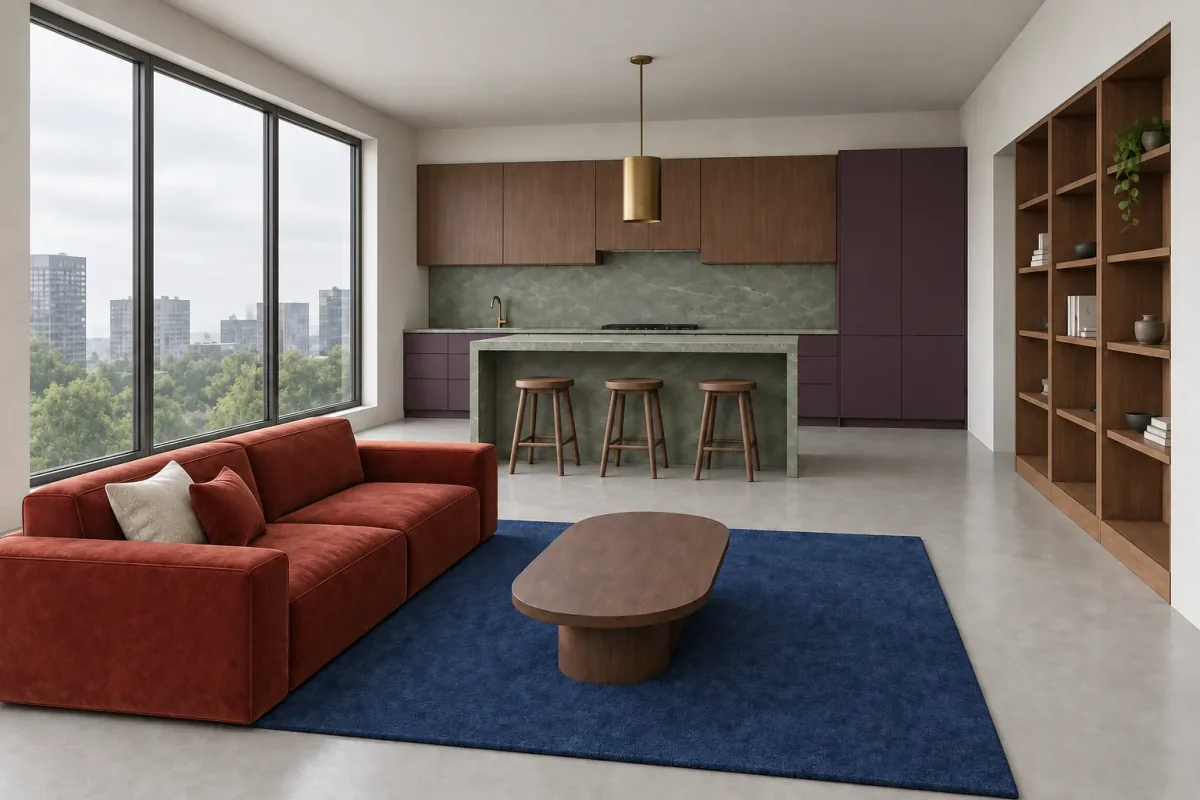
The first concept gives the clay view a strong material hierarchy. Walnut connects the upper kitchen and right shelving; aubergine grounds the lower and tall cabinets; pale green quartzite spans the counter, backsplash and island. Rust upholstery and a cobalt rug separate the living zone from the kitchen without changing its modeled position.
Compare geometry before judging atmosphere. The three window divisions, cabinet run, tall pantry, island, three stools, shelf bays, sofa and table remain recognizable. Some module lines are softened by the material interpretation, and the exterior view is invented because the source contains only abstract blocks outside. The output also introduces illuminated under-cabinet lighting that was not in the source or requested brief.
Those additions matter in a professional review. Do not let the attractive glow become an undocumented lighting decision. Mark it as drift, decide whether the material direction remains useful and use a focused next step only if the model anchors still answer the original design question.
6. Compare another direction from the same model export
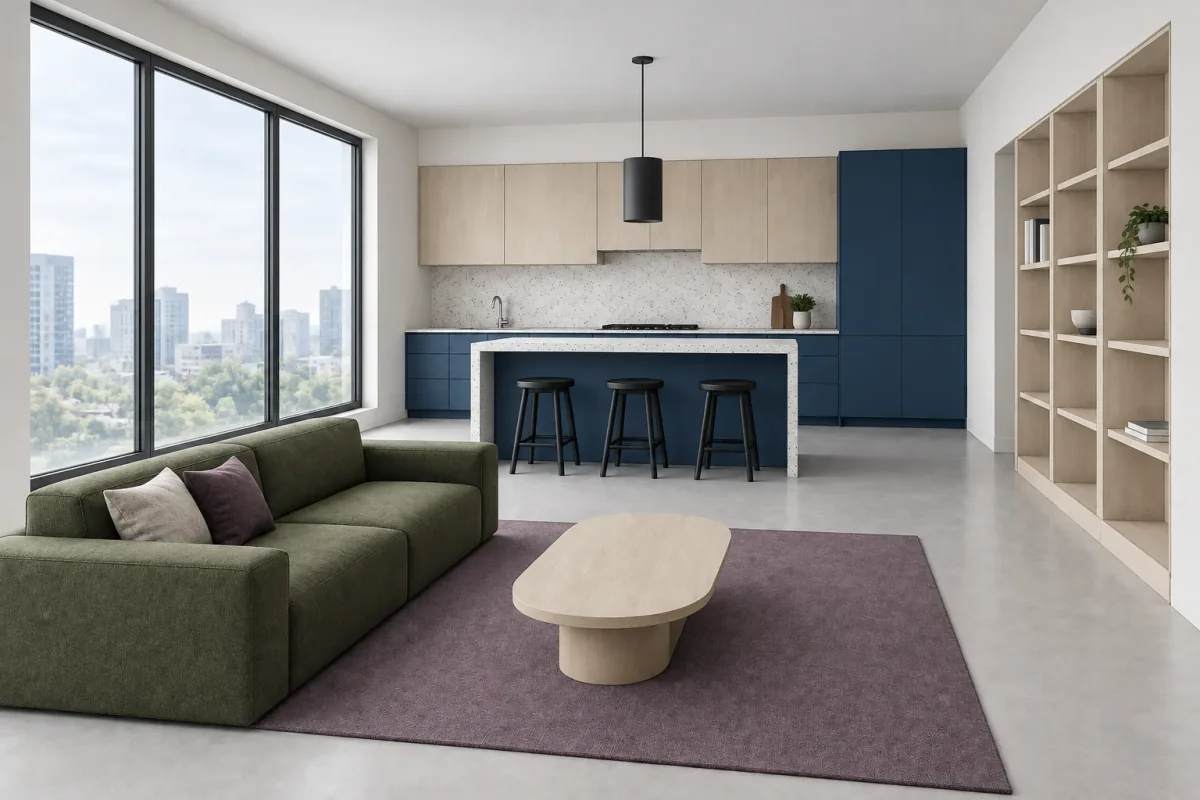
For a broad material comparison, return to the clay source rather than generating from the warm render. The cooler direction uses cobalt lower and tall cabinets, pale ash uppers and shelving, white terrazzo surfaces, a moss sofa and muted plum rug. Diffuse morning daylight and a switched-off black pendant keep the palette cooler and flatter.
Both concepts answer the same model geometry with different material and lighting briefs. That makes their main decision legible: dark warm timber and aubergine with sunset character, or pale ash and cobalt in neutral morning light. The cool output also invents an exterior view and adds small counter and shelf props that were absent from the clay source. Do not compare the realism alone. Check whether cabinet divisions, island depth, shelf bays and window framing remain equally useful in each output.
7. Refine the light without reopening the materials
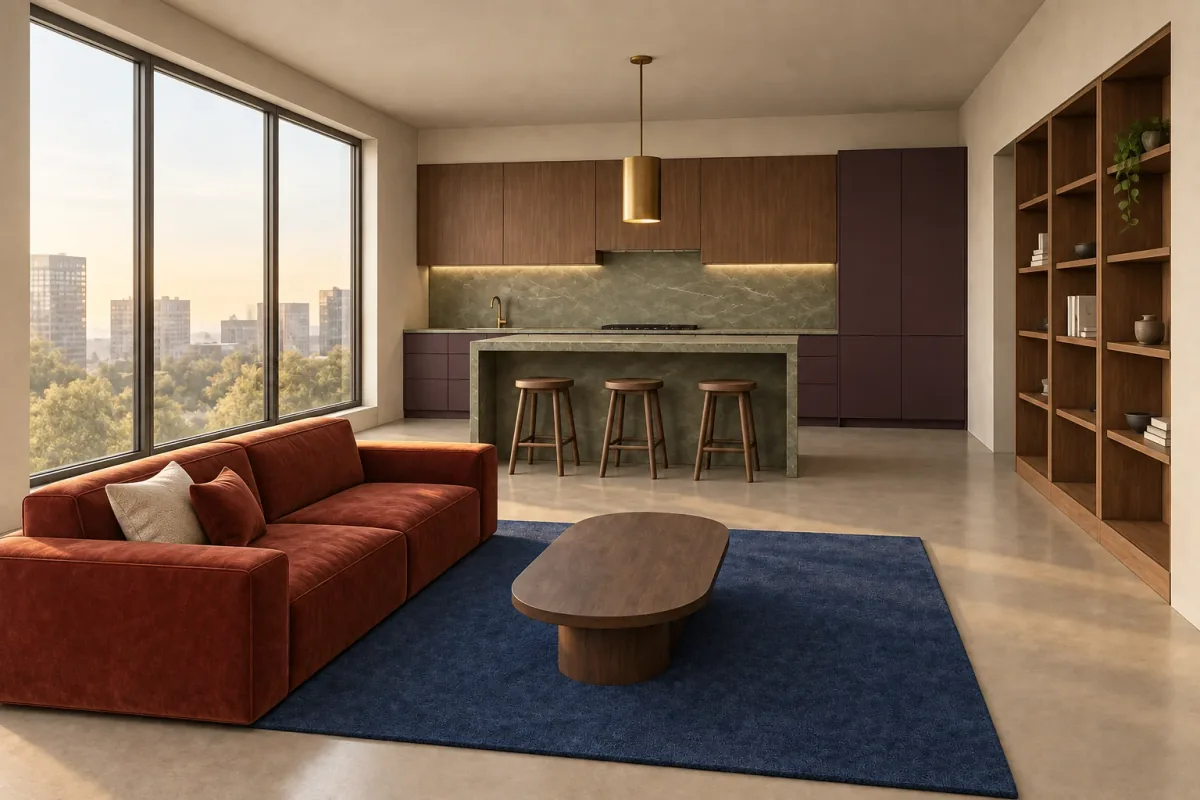
Suppose the warm palette works but the amber cast makes material comparison difficult. Select that render as the parent and ask only for neutral overcast daylight with the pendant and under-cabinet lights switched off. Repeat the material list as elements to retain, not as a new design request.
The refined version keeps the aubergine, walnut, quartzite, rust and cobalt relationship while making the plaster and stone easier to compare under more neutral light. The window view and fine surface interpretation still differ from a controlled rendering engine. Review the parent and child for subtle shifts in cabinet color, grain, reflections and decor before treating this result as the preferred presentation image.
8. Review geometry, materials and light separately
Use three passes rather than one overall approval. In the geometry pass, compare camera, wall edges, openings, module divisions, island, furniture silhouettes and circulation with the saved model view. In the material pass, check location, scale, reflectivity and color relationships. In the lighting pass, separate intended daylight and fixtures from invented highlights or exposure changes.
Keep a discrepancy list beside the images. Classify each item as acceptable concept interpretation, required revision or reason to reject the result. An invented skyline may be harmless to a cabinet-palette discussion; a moved island or missing cabinet division may not be. The project model remains the place to verify and correct geometry.
| Pass | Compare | Reject or escalate when |
|---|---|---|
| Camera | Crop, perspective and visible wall lengths | The view no longer represents the saved scene |
| Geometry | Openings, joinery modules, island and built-ins | A project-critical form moves or disappears |
| Materials | Assigned surface, scale, sheen and relationship | The image implies the wrong assembly or product |
| Lighting | Window source, fixture count, direction and contrast | Invented light changes the design decision |
| Styling | Only additions needed to communicate scale | Decor obscures surfaces or circulation |
9. Know when a controlled render is still required
Use AI concepts for rapid direction-setting: comparing a warm and cool material story, discussing atmosphere or deciding which scheme deserves more development. The output can shorten the distance between a clay view and a useful visual conversation. It does not become the technical record of the design.
Use a conventional rendering workflow linked to the model when you need exact camera repeatability, verified geometry, specific product textures, controlled UV mapping, accurate reflections, fixture photometry, daylight studies, multiple matching views, animation or revision traceability. Construction and fabrication decisions still require measured drawings, specifications and the appropriate professional review.
A practical handoff pairs the selected AI concept with the saved model scene, discrepancy list and material brief. Recreate accepted decisions deliberately in the model and rendering setup rather than assuming the generated pixels correspond to modeled surfaces. This preserves the speed of exploration without losing control of the project.
Questions about rendering a SketchUp view with AI
Can I upload a .skp file directly to Vizterior?
No. This workflow starts from a raster image exported from the model view. Keep the .skp model in SketchUp as the editable source for geometry, dimensions and later controlled rendering.
Should I export with edges visible?
Use restrained edges when they clarify openings, cabinet modules and adjacent faces. Avoid heavy sketch effects, guides and selection marks. Check that the exported raster remains readable at its actual pixel size.
Is PNG or JPEG better?
Either can work. PNG often preserves clean edges well; a high-quality JPEG can reduce file size. Export enough pixels for the important geometry and avoid repeatedly recompressing the source.
Will AI preserve the model exactly?
No. It can reinterpret module lines, proportions, objects, lighting and exterior views. Compare each output with the saved source view and keep the model as the authority.
How is this different from the hand-sketch workflow?
A model-view export already describes crisp 3D faces, modules and camera perspective. A hand sketch may leave more forms open to interpretation. This guide focuses on preserving modeled geometry while assigning materials and light.
Can the AI image replace a professional render?
Not when you require repeatable geometry, product-specific materials, validated lighting or technical deliverables. Use the AI image for exploration and recreate accepted decisions in the controlled project workflow.